
One walk picks many orders.
A picking list gathers orders so one person can walk the warehouse once and pick the products for all of them. Every item is checked by a scan on the way.
- 1walk picks the products for many orders
- 0aisles walked twice: items sorted by rack and bin
- 100%of items checked by a scan on the way
- 13+couriers' labels created when the list is done
From a list of orders to a full trolley.
- 1
Build the list
No more sorting printouts in the morning. Pulsa builds the list by status or courier, or you choose the orders by hand, and pick who walks it.
- 2
Walk one route
Items are sorted by rack and bin across all the orders, so nobody walks the same aisle twice.
- 3
Scan, count, drop
Scan the bin, count the product, scan the trolley bin of its order, so the wrong item or the wrong order is caught right there.
- 4
Hand over to packing
Finishing can create the shipping labels, so packing does not wait for them. The list closes itself once its orders are packed.
Everything picking does, from the list to the last bin.
Picking from paper means long walks, wrong items and orders that leave incomplete without anyone noticing. Here is what the picking pages of Pulsa really offer, step by step. Anything that depends on a setting says so.
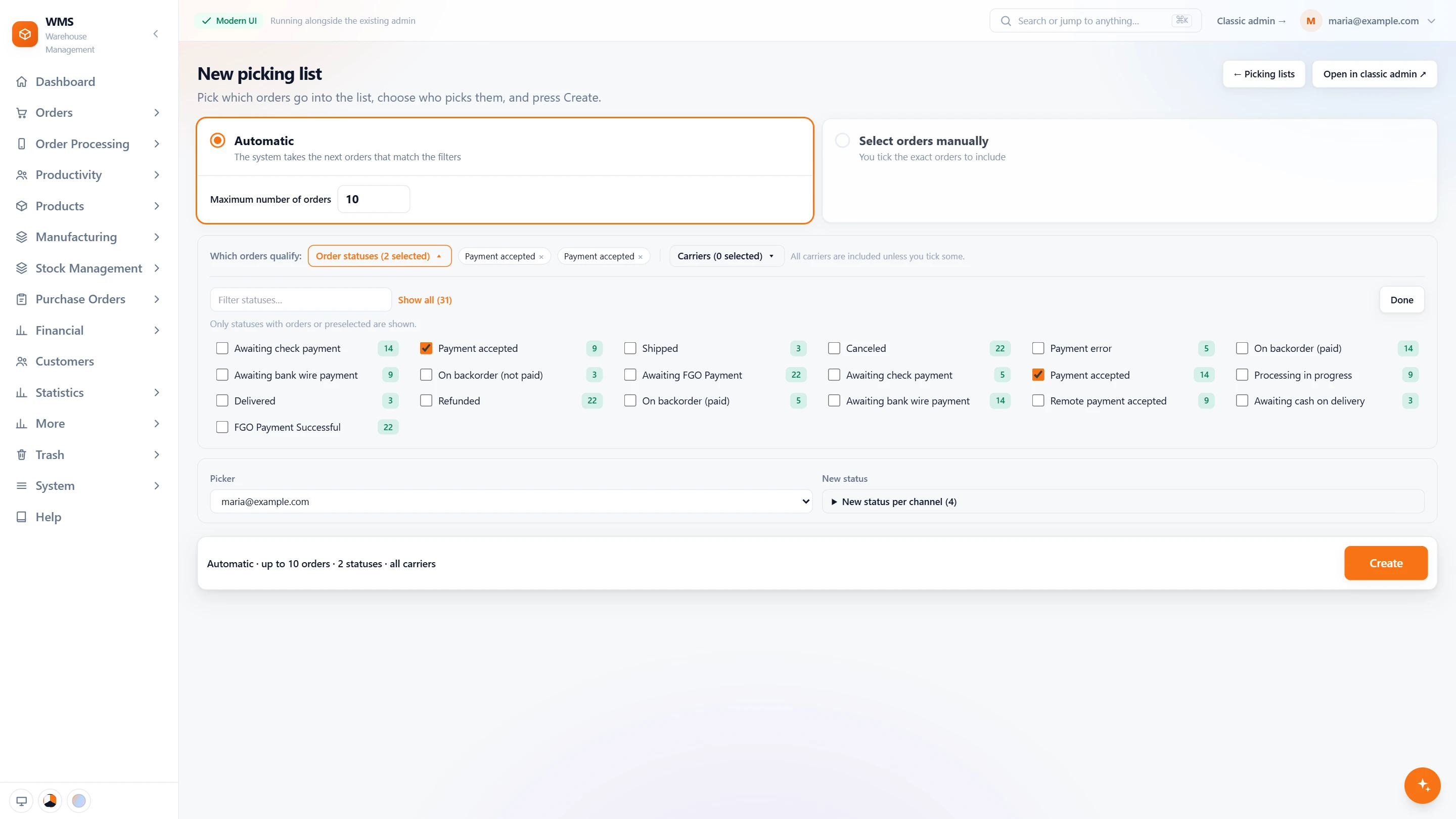
Make the list
Choosing orders and printing lists by hand eats the first hour of the day. Pulsa puts together a list of the orders that are ready, in a few clicks.
- Automatic or by handNo sorting orders one by one: Pulsa takes the next orders that match your filters, up to the number you set, or you tick the exact orders yourself.
- Only the orders that are readyOrders that are not ready stay off the list: choose which order statuses qualify, and each one shows how many orders wait in it.
- By courierPick for the courier who collects first: limit a list to some couriers; all are included unless you tick some.
- Who picksEveryone knows which list is theirs: choose the picker the list is made for.
- What happens to the ordersOrders do not need a separate status update: they get the new status you set for each sales channel when the list is made.
- One urgent orderThe urgent order does not wait for the next round: where your settings allow it, make a picking list for it straight from the order page.
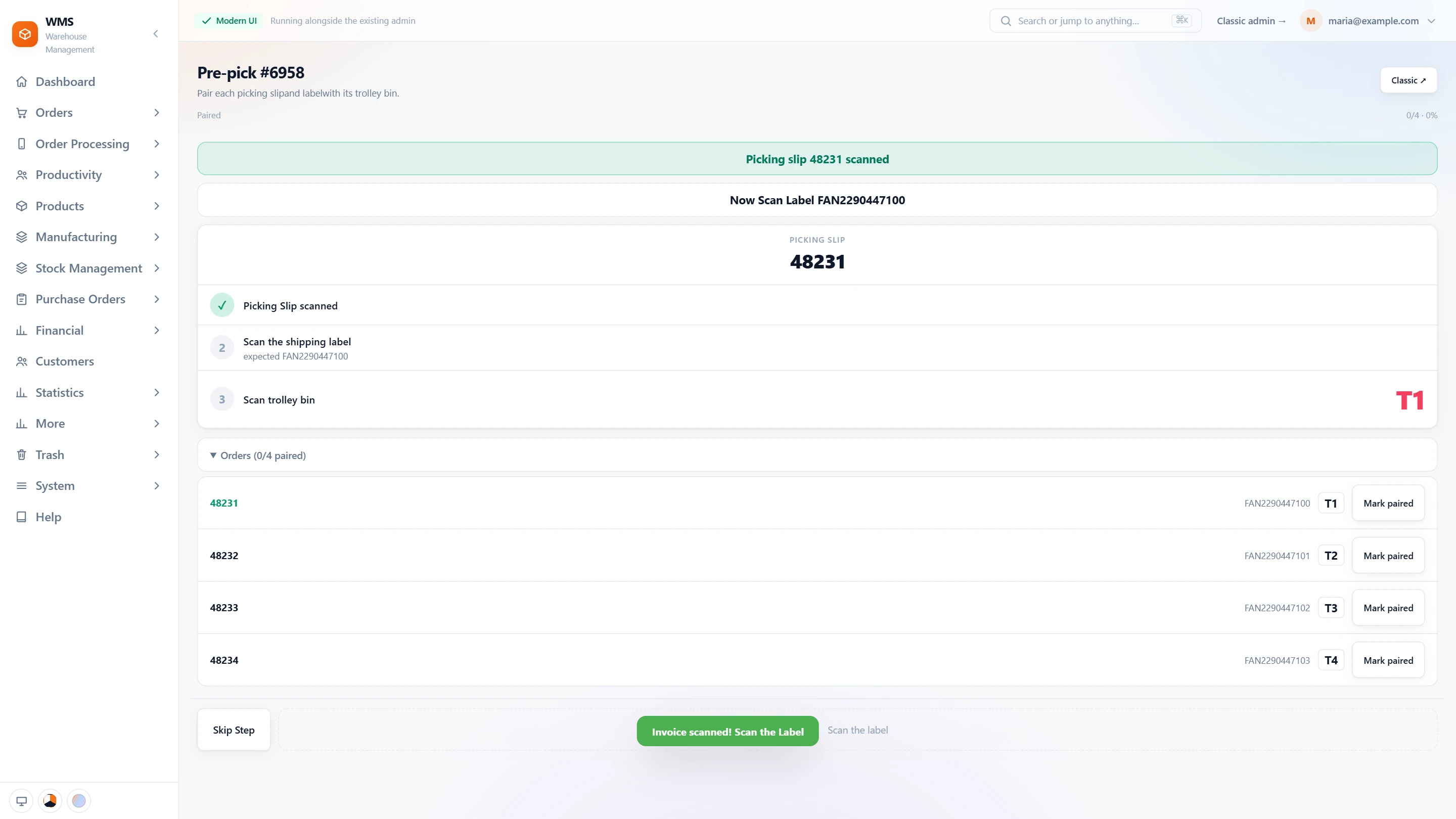
Pre-pick: each order to its bin
When slips, labels and products of different orders get mixed on the trolley, the wrong parcel reaches the wrong customer. Pre-pick pairs each order with its label and its trolley bin before anyone walks.
- Scan the slipNo looking up the order: scan its picking slip (or its invoice) and Pulsa finds it in the list.
- Scan the labelThen its shipping label; a label that belongs to another order is refused, so labels cannot be swapped.
- Scan the trolley binThen the bin on the trolley the order's products will go into, so each order has its own place.
- Every order pairedSee at once whether any order is still missing: the list shows how many are paired, and one can be marked paired by hand.
- Then pickingContinue straight to the pick screen, with every order already in its bin.
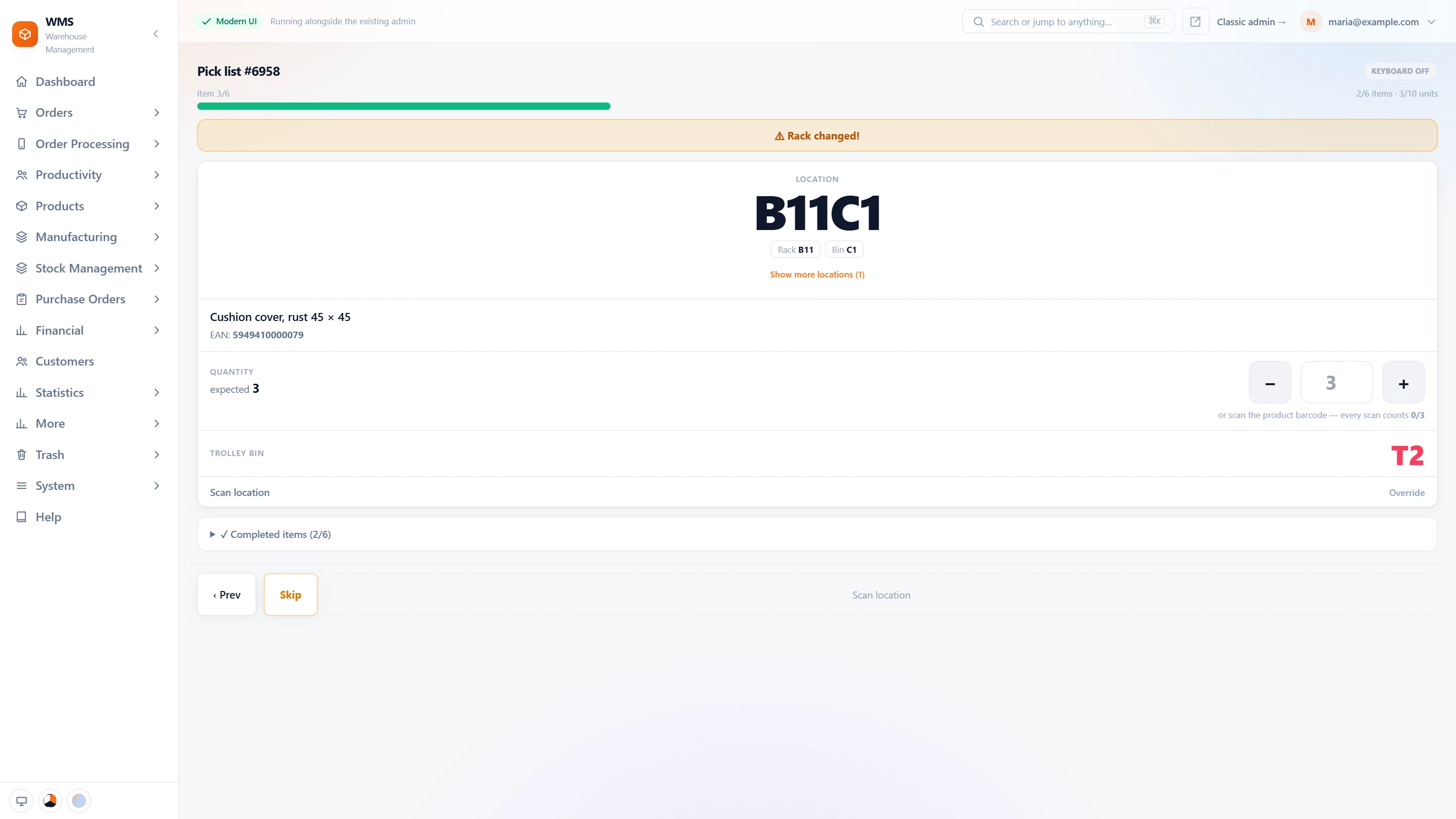
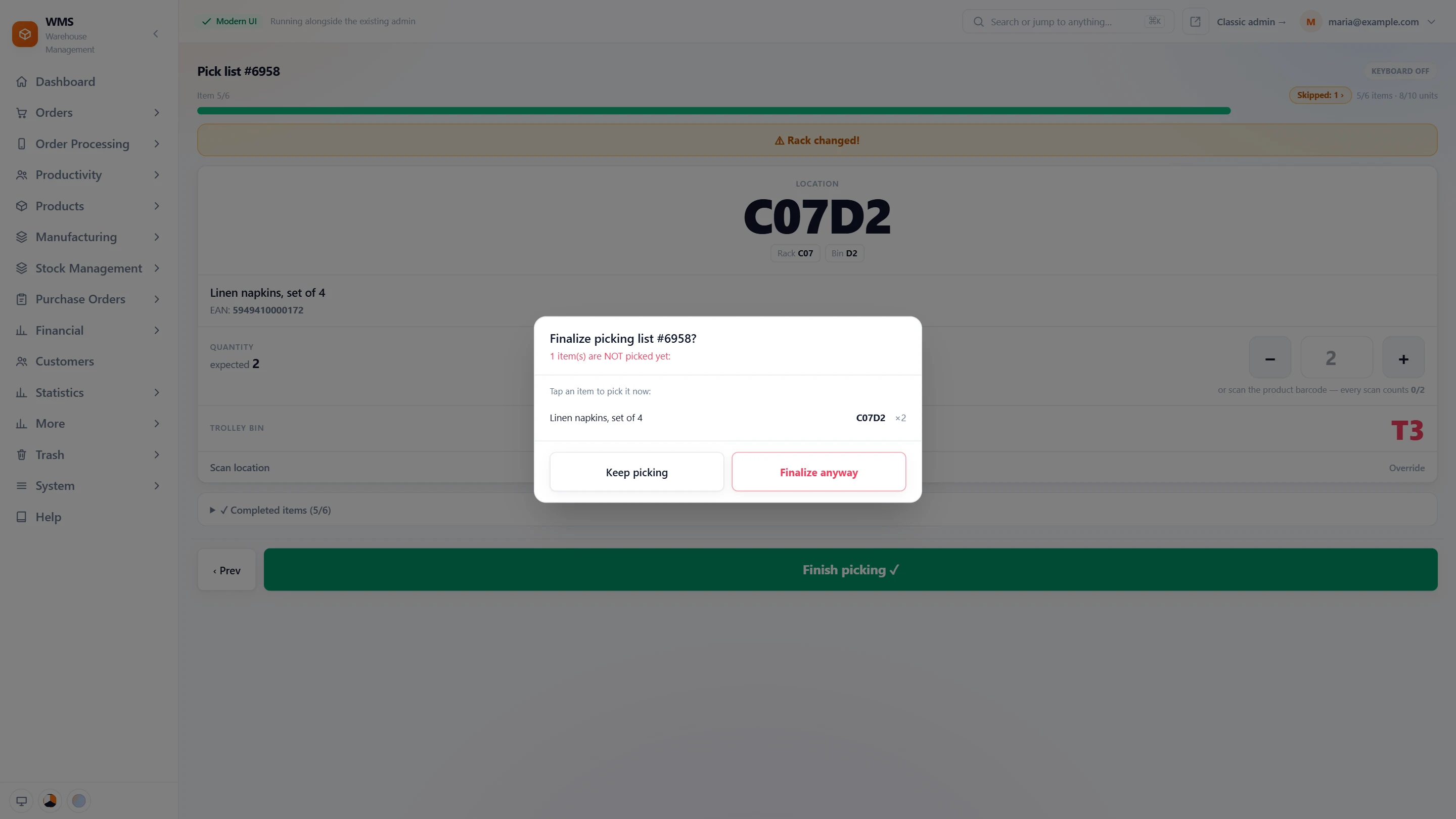
The pick screen
A crowded printout makes pickers search for the next line and guess where it goes. The pick screen shows one thing at a time: where to go, what to take, how many and where to put it.
- 1One line at a time, in walk orderNo zig-zagging through the warehouse: the lines are sorted by rack and bin, with the line number and the units picked so far.
- 2Where to goReadable from arm's length: the location in large letters, with the names your warehouse uses for its levels.
- 3Other placesIf one shelf is empty, the picker does not have to search: other locations of the product are one tap away.
- 4What to takeThe product name and its EAN; scanning the product barcode can be required, and each scan counts one, so a look-alike product is not taken by mistake.
- 5How manyNo counting in your head: the expected quantity, counted with − and + or typed.
- 6Where to put itThe trolley bin of the order, scanned to confirm, so the item lands in the right order.
- 7Rack changedA warning when the next line is in another rack, so nobody looks for it on the wrong one.
- 8What is doneCheck progress without losing your place: the lines already picked are one tap away.
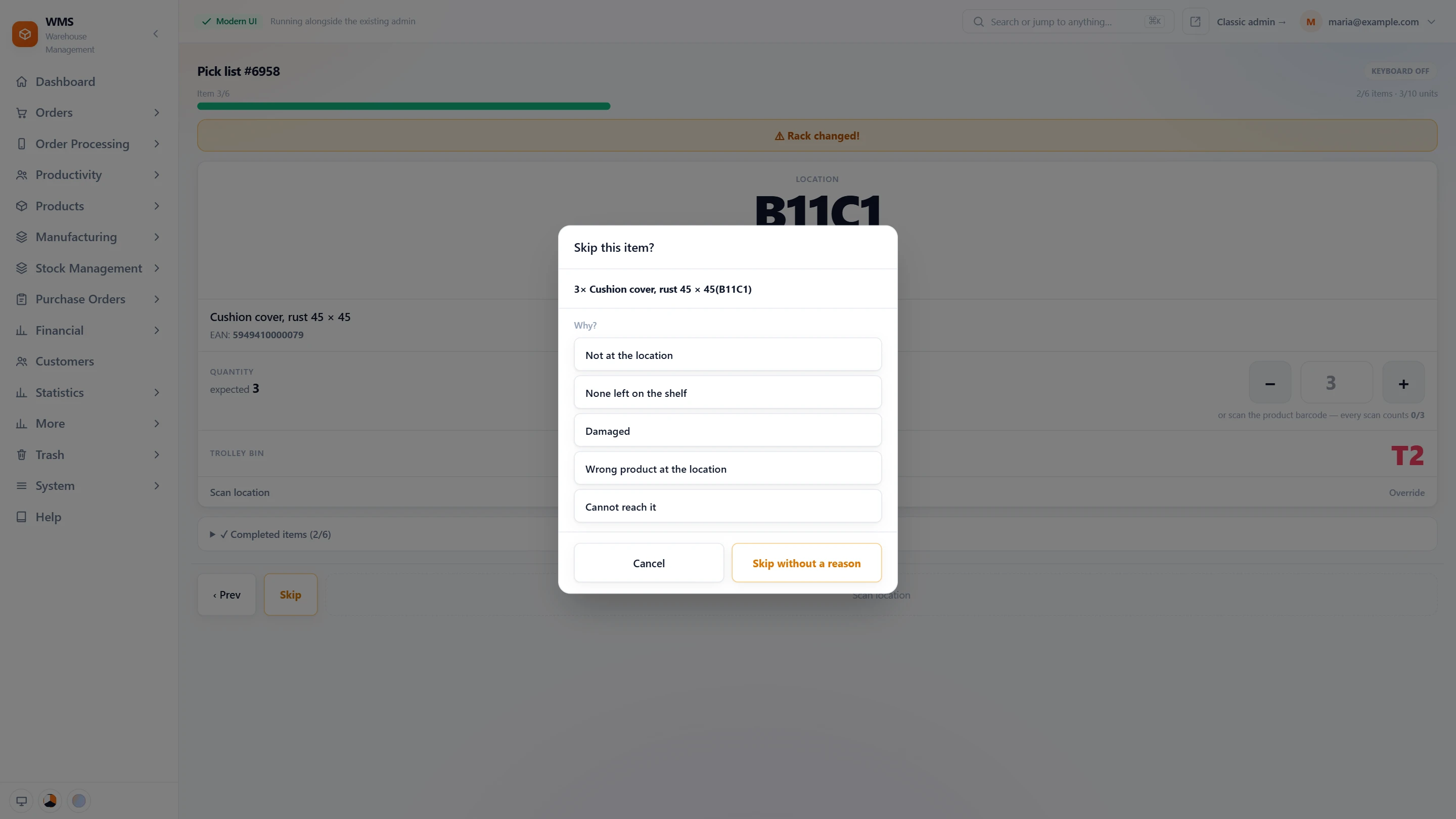
When something is not right
On paper, a wrong scan or a missing item goes unnoticed until the customer complains. Here mistakes are stopped on the spot, and every gap is visible to the office.
- Wrong locationA scan of the wrong place is refused, and the screen says which one is expected, so the picker knows where to go.
- Wrong product, or too manyA wrong barcode or more units than ordered are refused, before the item reaches the parcel.
- Skip, with a reasonNot at the location, none left on the shelf, damaged…: the picker chooses from your own list of reasons, and the line moves to the end instead of holding up the round.
- Short orders are seenSkipped lines are counted, and the order list shows the orders that will ship short, so the office can act before the customer notices.
- Override, with a reasonA label that will not scan does not stop work: record the line by hand; asking why can be switched off.
- Nothing lost quietlyIf saving fails, the screen says the line is NOT recorded and offers to try again, so no pick silently disappears.
Finish the list
A list closed too early leaves items on the shelf; a list never closed leaves orders hanging. Finishing shows exactly what is still open and hands the orders on to packing.
- Finish when it is doneChoose when a list counts as done: when every line is picked, or picked or skipped.
- Open lines listedNothing is left behind by accident: finishing with lines still open lists them; tap one to pick it now, keep picking, or finalize anyway.
- Re-pickA mistake is not final: a finished list can be opened again, after a confirmation.
- Label after pickingWhen switched on, the shipping label is generated once picking is done, so it is ready when packing starts.
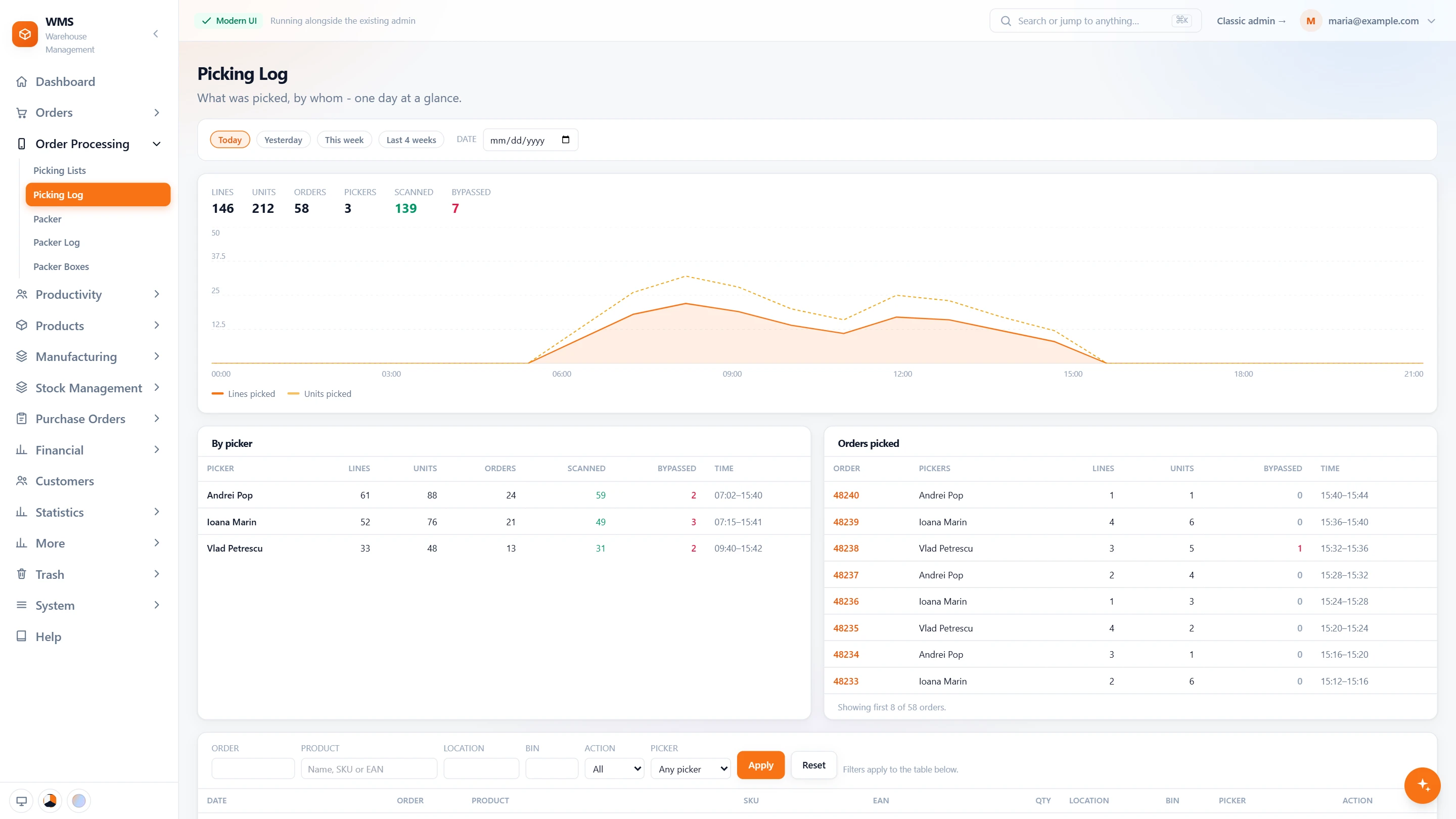
The picking log
Without a record, "was it picked?" and "how did the day go?" are answered by guessing. The picking log keeps every line, so the answers are a click away.
- The day at a glanceSee how much was done without counting: lines, units, orders and pickers, and how many lines were scanned or bypassed.
- Hour by hourSpot the slow hours: lines and units picked through the day, on one chart.
- By pickerFair, clear numbers for each person: their lines, units, orders, scans and overrides, with their first and last pick.
- By orderWhen a customer says something is missing, see who picked the order, how much, and when.
- Any dayLook back whenever you need to: today, yesterday, this week, the last four weeks or any date.
- Find one lineGet to the answer fast: filter by order, product, location, bin, action or picker.
Set it up your way
Every warehouse picks a little differently, and forcing one way on everyone slows the team down. These settings fit the screens to how your people already work.
- Built for scannersEasy to use with a scanner in hand: big buttons, a scan is read anywhere on the screen, and a compact layout for scanner screens; it works on a phone too.
- Scan rulesAs strict as you need: require the product barcode, require the trolley bin, or skip the trolley bin when a list has only one order.
- Product name shown or hiddenLess to read when your team works by code: show only the location and the code.
- Guided or freeFollow the walk order, or let experienced pickers choose the next product from the list.
- Limits and namesSet it once and stop repeating it: the most orders a list takes, the trolley bin prefix, and the statuses a new list starts from.
- Keyboard modeThe on-screen keyboard does not get in the way: the default is set once for the warehouse, and the picker can switch it on the screen.
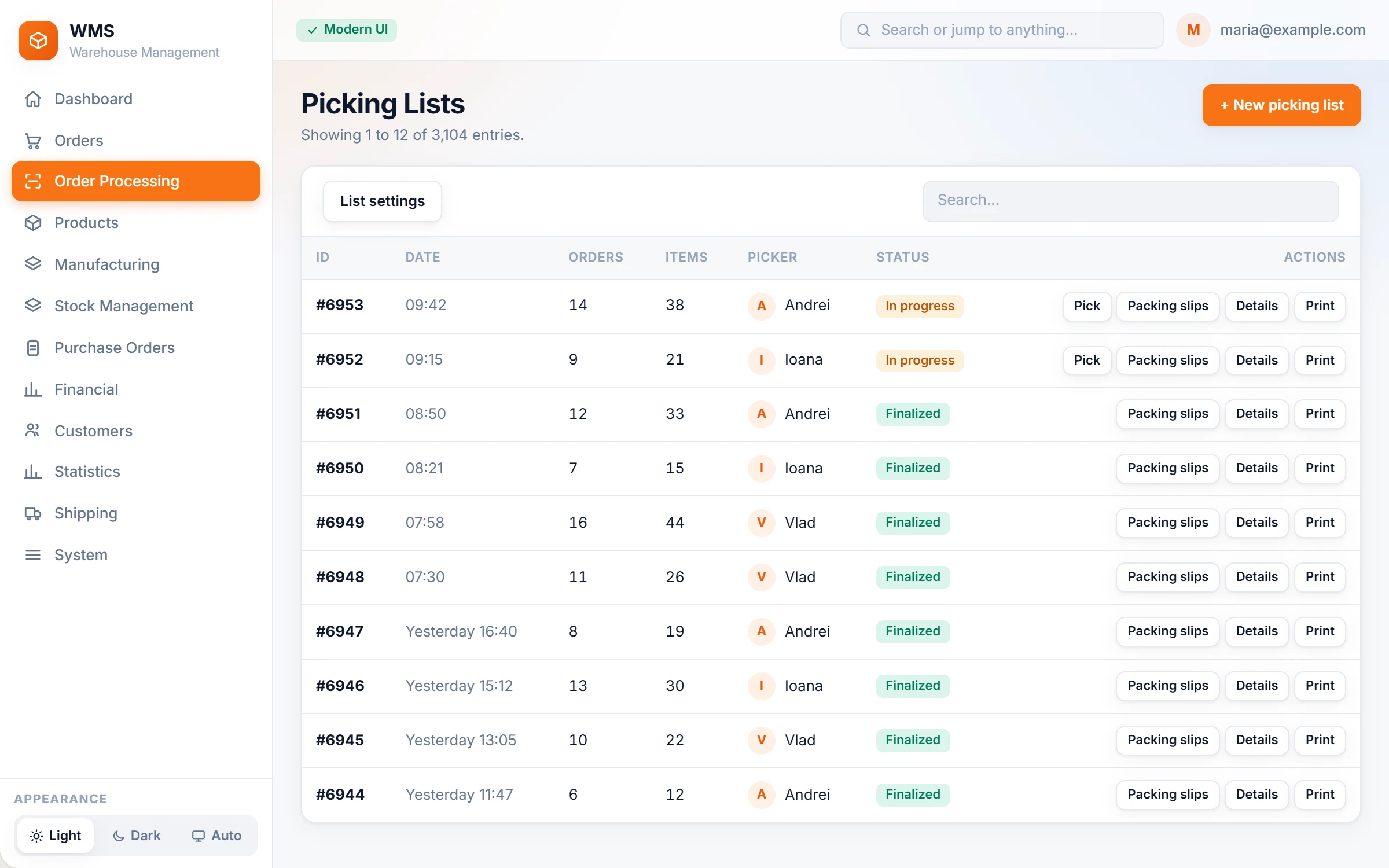
Each row is one job for the floor.
No walking the floor to ask how far everyone is. The office builds the lists and sees each one move: who is picking it, what is left, and the packing slips ready to print.
Made for real warehouse floors.
Skip and come back
An empty shelf does not stop the round: move the item to the end of the list. The skip survives a reload or a change of device.
Pre-pick pairing
Slips and labels no longer get swapped. Scan the packing slip, the shipping label and the trolley bin; a wrong pair beeps and vibrates.
Age-restricted orders flagged
No age check is forgotten: the picker sees which orders need one before they leave.
Rules per sales channel
Shops see that work has started without anyone updating them: each channel can move its orders to its own status when picking starts.
Zebra handhelds and phones
No new hardware project: the scanner types straight into the screen, and there is nothing to install on the device.
The picking day, hour by hour
Know how the day went without asking: who picked what, and when, for today, yesterday or the week.
Labels for your couriers
No typing addresses into courier websites: when the list is finished, the shipping labels can be created for every order on it.





Questions about picking
Do we need new scanners?
Probably not, so there is no big hardware cost to start. The floor screens run in the browser, so any handheld that types its scans in as keyboard input works. Zebra TC20 and MC3300 handhelds are in daily use today, and phones work with a Bluetooth scanner.
How many orders go on one list?
As many as suits your team: automatic lists take orders up to a number you set. You can also choose them by hand.
What if a product isn't on the shelf?
The round does not stop: the picker skips it and comes back at the end of the list. A second bin is shown if the product has one.