
Every order from every channel, in one list that says what to do next.
Orders arrive from your shops and marketplaces on their own. Pulsa sorts them into work queues, reserves the stock and sends every status back to the shop.
Orders in five admin panels, and the forgotten one found by the customer.
Each shop and marketplace has its own order screen. Someone copies orders into a spreadsheet, checks by hand which ones are paid, and only finds the order that has waited a week when the customer writes to complain. Pulsa puts them all in one list, so that order never gets forgotten.
How it works in Pulsa
Orders arrive on their own
Nobody copies orders across any more. They come in from every connected shop and marketplace with the customer, the addresses, the products and how they paid.
Work queues, not one long list
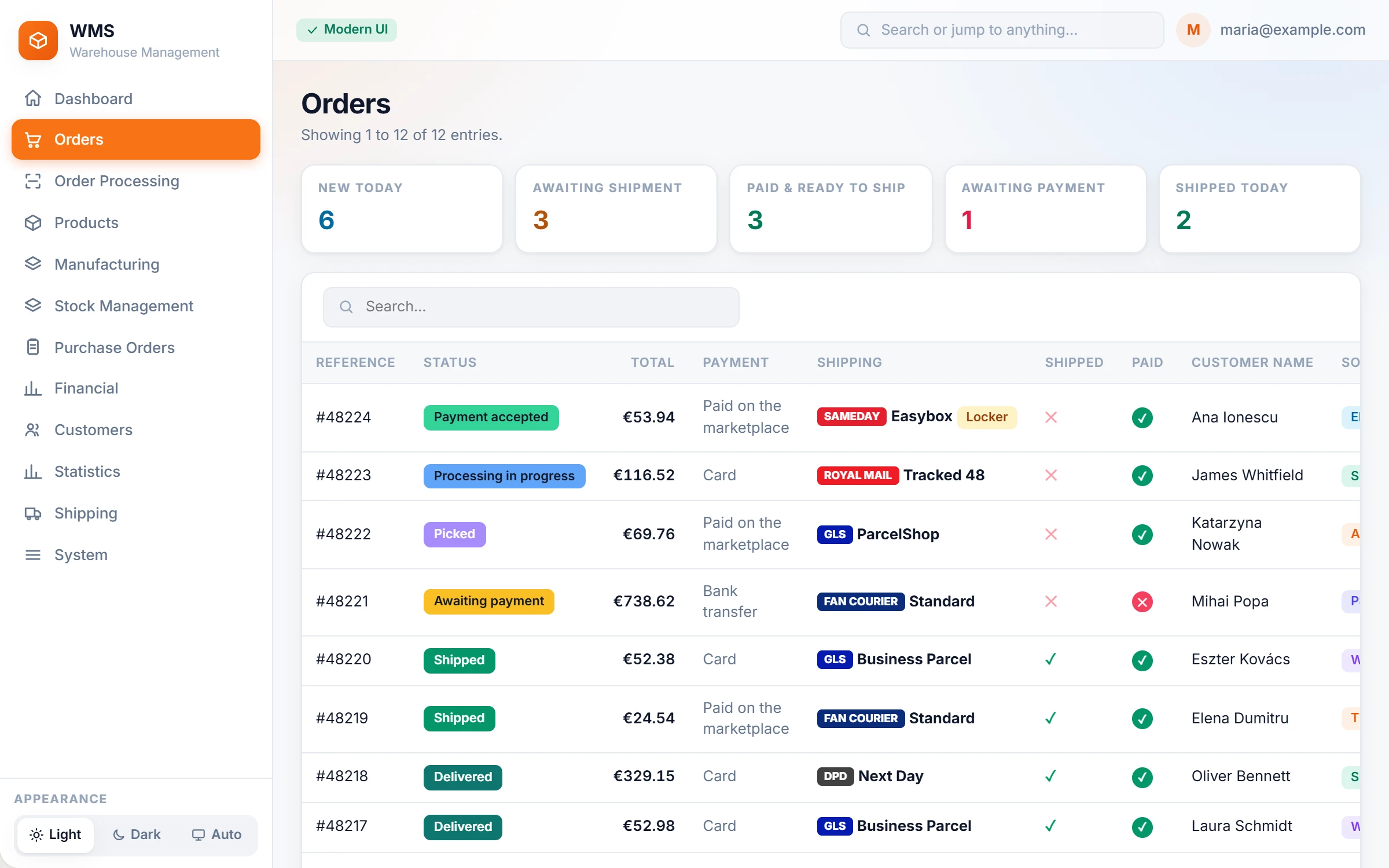
No more scrolling a long list to work out what comes next. Counters show New today, Awaiting shipment, Paid & ready to ship, Awaiting payment and Shipped today, and one click shows exactly those orders. The oldest unshipped order is named with its age in days, so nothing waits unseen.
Statuses that do the work
One status change does what used to take several steps. Depending on how you set it up, it can reserve stock, take it out of stock, mark the order paid or shipped, or put returned stock back. The new status is sent to the shop, so nobody updates it there twice.
One order, one page
No hunting through tabs and emails to answer a question. Totals and payment, the customer and their other orders, shipping and tracking, every product with its bin and stock, internal notes, and who changed what and when are all on one page.
Every stock change explained
When a number looks wrong, you can see why without guessing. Stock movements list every change from sales, deliveries, stocktakes, corrections and transfers between companies, with who caused it and the reason in words.
Everything you can do with an order, in one place.
No more switching between shop admins, spreadsheets and courier websites. Below is what the order list and the order page really offer, grouped by the job you are doing. Anything that depends on a setting or a plugin says so.
Find the work
In a busy day it is easy to lose sight of what is urgent and what has been waiting. These tools show what needs doing first, so no order is forgotten.
- The day at a glanceSee the day's work without counting by hand. Above the list: New today, Awaiting shipment, Paid & ready to ship, Awaiting payment and Shipped today. Each number opens exactly the orders it counts.
- Nothing quietly waitingThe oldest unshipped order is named with its age in days, so it is caught before the customer complains. Orders that will ship short, because an item was skipped at picking, have their own count and list.
- Old statuses kept apartUnshipped orders with a status no channel uses any more are shown on their own, so they do not make the work to do look bigger than it is.
- One search boxWhatever the customer gives you, it finds the order: order reference, the shop's order number, tracking code, invoice number, or the customer's name or company.
- A filter for every questionAnswer "which orders…?" without a spreadsheet: status, sales channel, payment method, shipping method, paid, shipped, returned, reserved, stock state, customer or company, order total from–to, date from–to, and more. One click clears them all.
- Invoiced or notNo more checking the invoicing app order by order. With SmartBill or FGO connected, filter the orders that have an invoice there, the ones that do not, and the ones whose invoice was cancelled.
A list that fits your team
Every team looks at orders a little differently, and a crowded list slows everyone down. Here each person sets up the list once and finds it the same way next time.
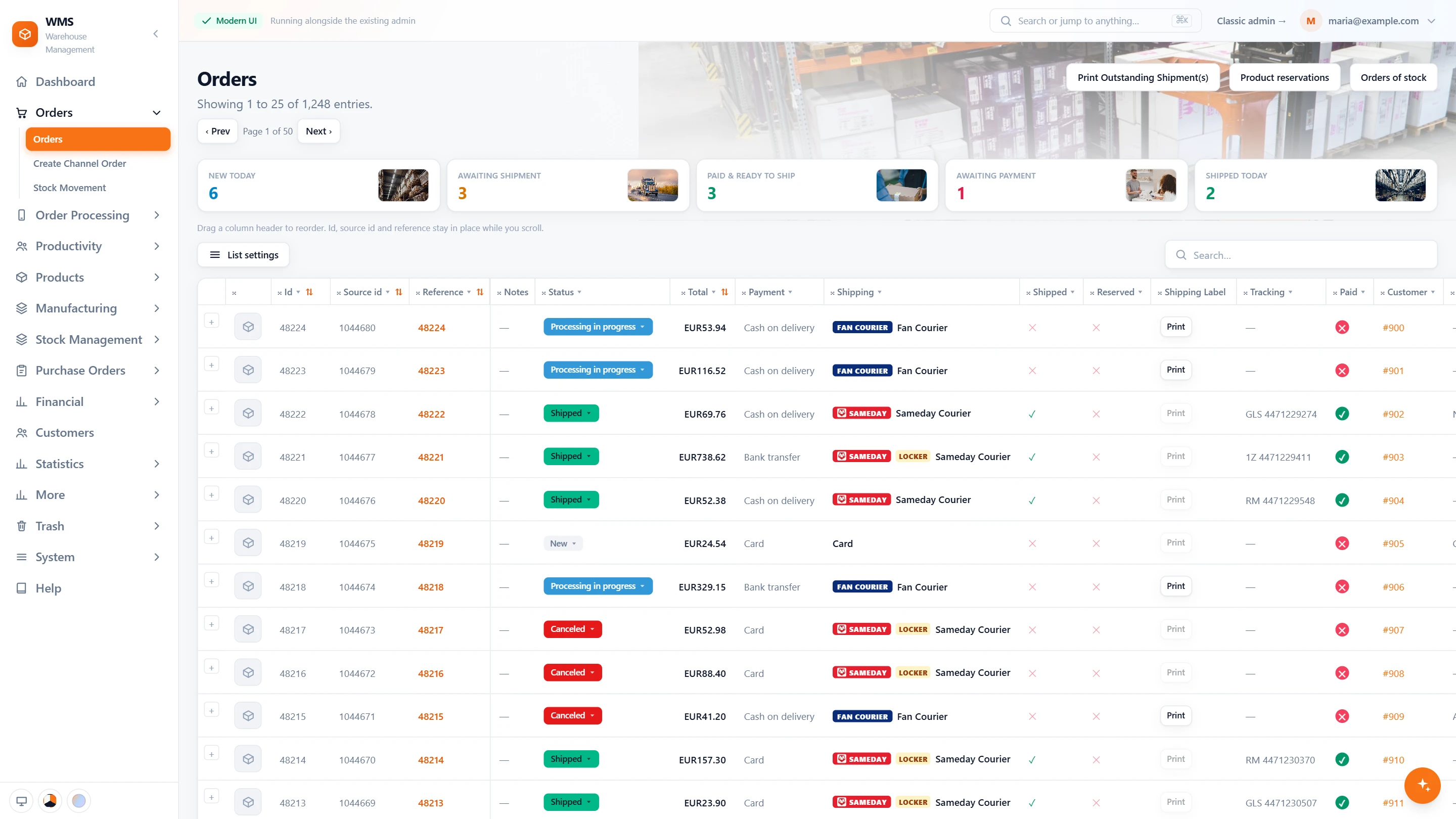
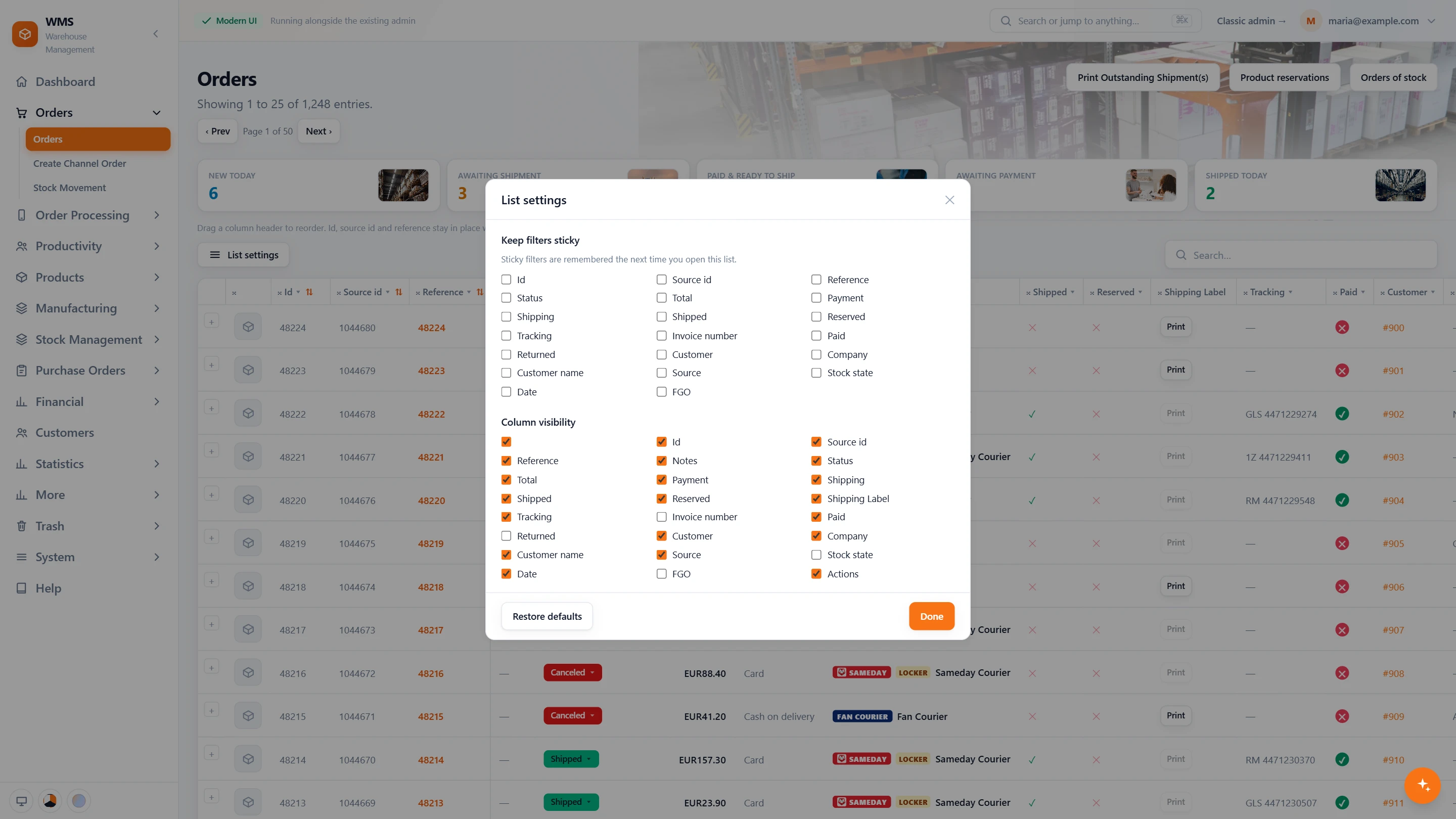
- Your columns, your filtersShow only the columns you need and drag them into your order; ID, shop order number and reference stay in place while you scroll sideways. Filters you mark as sticky are still set next time, so you do not set them up every morning.
- Everything on the rowMost questions are answered without opening the order: the first product's picture, the channel badge, the status in its colour, paid, shipped and reserved marks, the courier, and a sign when the customer chose a locker.
- Change the status from the listUpdate an order without opening it. Each row has its status menu, offering only the statuses of that order's channel, so a wrong one cannot be picked.
- Sort and pagePut the orders you need at the top: sort by ID, reference, total, the date in the shop or in Pulsa, or the shop's number; 25, 50 or 100 rows a page.
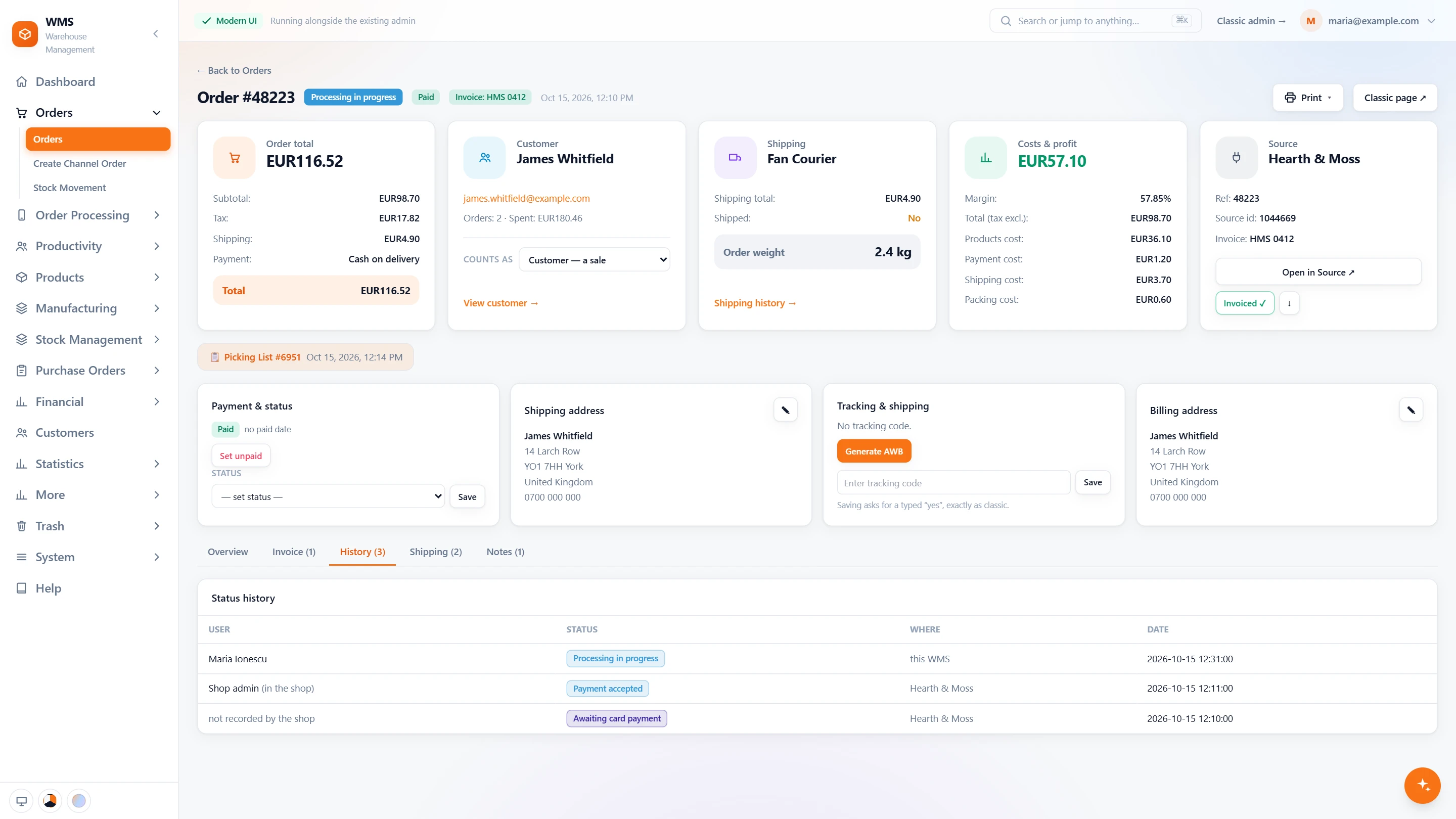
The order page
Answering a question about one order often means checking the shop, the invoicing app and the shelf. The order page puts everything about it in one place.
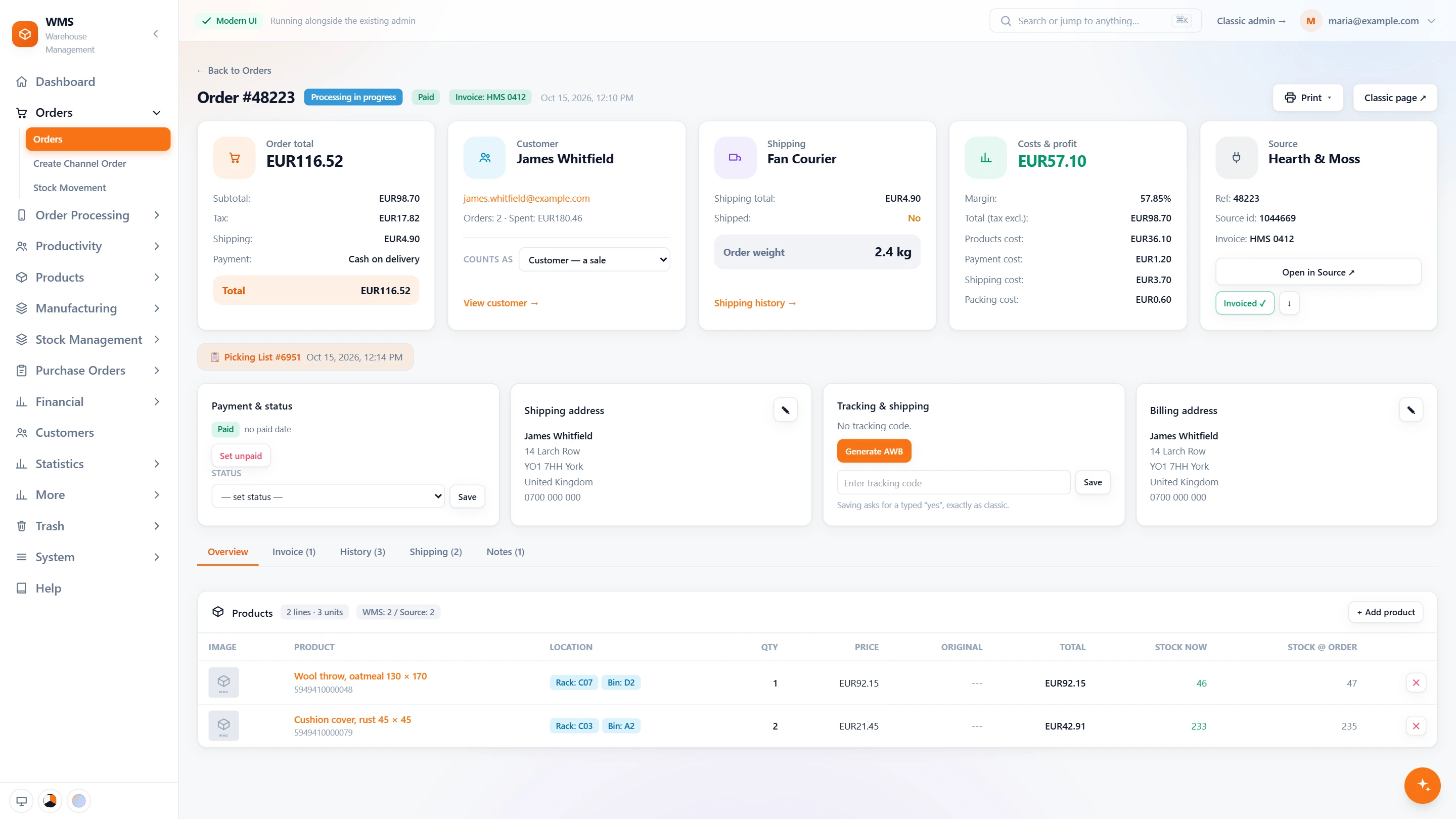
- 1MoneyKnow at once what was paid and when: products, VAT, shipping, discount and total in the channel's currency, how it was paid, and the date it was marked paid.
- 2Profit on every orderSee whether an order really earned money, without a calculation of your own: the total without VAT less the products' cost and the payment, shipping and packing costs, as money and as a percentage.
- 3Every product with its placeNo walking to the shelf to check. Picture, reference, EAN, quantity, price and original price, the rack and bin, the stock now and the stock when the order arrived. Packs and dangerous goods are marked.
- 4The customerKnow who you are dealing with before you answer: name, company and email, how many orders they have placed and how much they have spent.
- 5Addresses and deliveryFix a mistake before the parcel goes out. Shipping and billing address, each correctable; the locker the customer chose and its courier; a safe place when the shop sent one; the parcel weight next to the courier's limit per parcel.
- 6NotesWhat the customer asked for and what colleagues need to know stay with the order: the shop's notes, and your own internal notes with a colour and the name of who wrote them.
- 7The whole historyNo more asking around about what happened. Every status change with who made it, in Pulsa or in the shop, and when; every shipping label created or voided.
- 8Open it in the shopNo searching for the same order twice: one button opens it in the shop's own admin.
Change an order
Orders change after they are placed: a customer adds an item, an order is urgent, a sample goes out. These changes are made right on the order, without a workaround.
- Status and paymentSet the status and mark the order paid. The new status goes back to the shop, so nobody types it there again.
- Products on the orderWhen a customer changes their mind, add a product or remove one, where your settings allow it.
- A picking list for one orderThe urgent order does not have to wait for the next round: make a picking list for just this order.
- Stock from another companyWith several companies, move a line's stock from one company to another straight from the order, instead of doing a separate transfer first.
- Internal ordersSamples and replacements no longer distort your numbers. Mark a sample, a replacement or stock parked under a customer as internal: it leaves the profit and sales figures, and nothing else changes.
- Orders you take yourselfAn order taken by phone does not live on a sticky note: create it in Pulsa for one of your sales channels.
- Age checkWhen age verification is switched on, approve the customer's age from the order, so it is done and recorded before the parcel leaves.
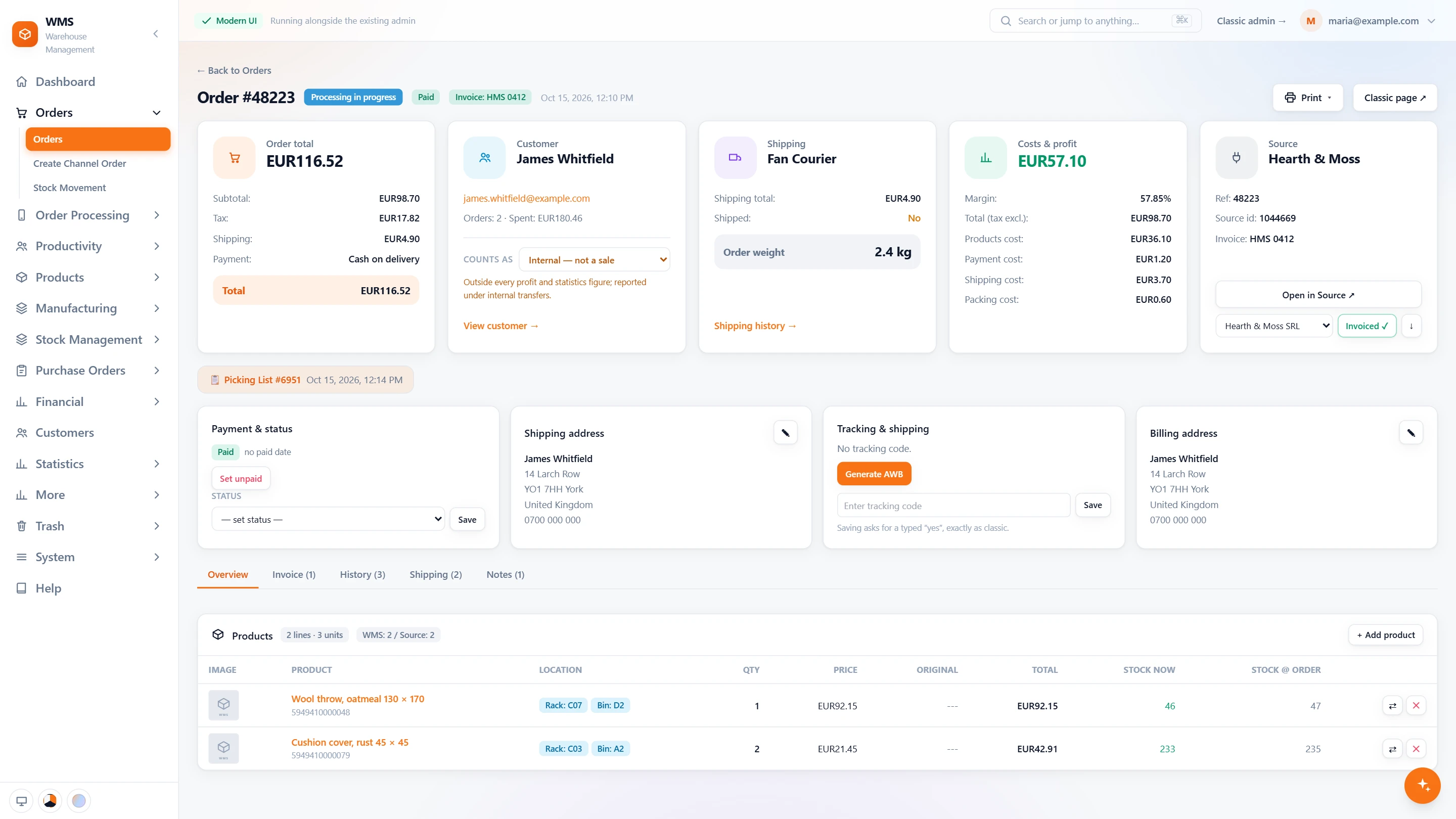
Labels and tracking
Typing addresses into each courier's website takes time and causes mistakes. Here the label comes from the order itself, and the tracking code stays on it.
- Labels from the list or the orderNo more retyped addresses: print the label for any connected courier. For parcels in several boxes, enter each box's weight first.
- Outstanding shipments by scanNo checking which orders still lack a label: scan an invoice or packing slip and Pulsa prints the shipping labels that are still missing.
- Void and print againA wrong label is easy to fix: void it and make a new one. The label history shows each one with who made it.
- TrackingAnswer "where is my parcel?" from the order: the tracking code is on it, can be entered by hand if needed, and, when switched on, the courier's tracking stages show on the order page.
- eMAGNo separate trip to the eMAG portal: the eMAG AWB (its shipping label) is made from the order with its PDF, and eMAG return requests show on the order.
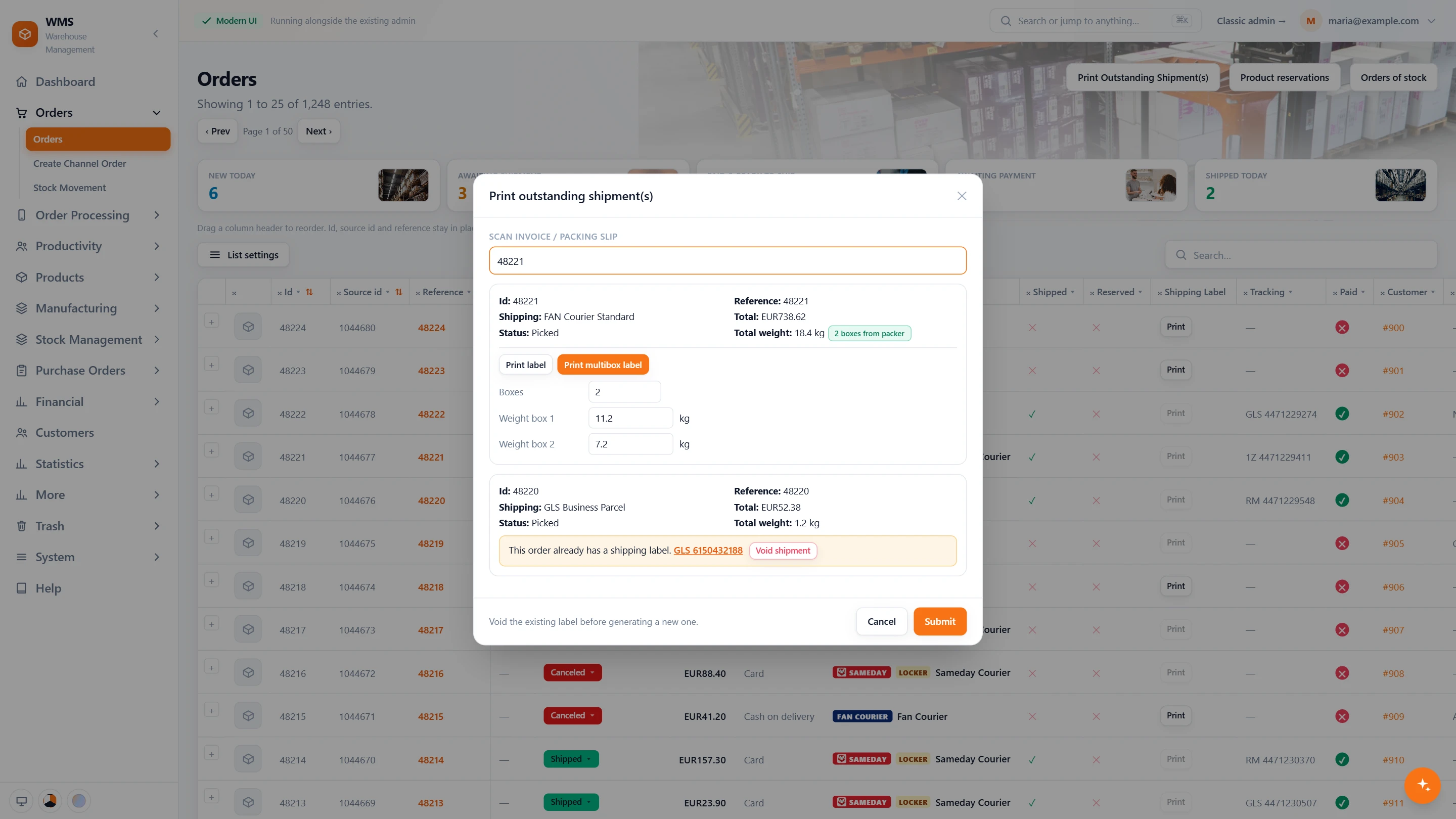
Invoices
Issuing invoices in a separate app means retyping orders and checking which ones are done. Here the invoice is issued from the order it belongs to.
- Issue from the orderNothing is typed twice. With SmartBill or FGO connected, issue the invoice from the order, email it to the customer, open its PDF, cancel it or restore it.
- The right companyWith several companies, choose which one invoices the order; Pulsa suggests the one set for that sales channel, so the wrong company is not used by habit.
- Invoice seriesA prefix and a start number per series, used by the channels you choose. An order takes its number at its first invoice print and keeps it, so a reprint never gets a new number.
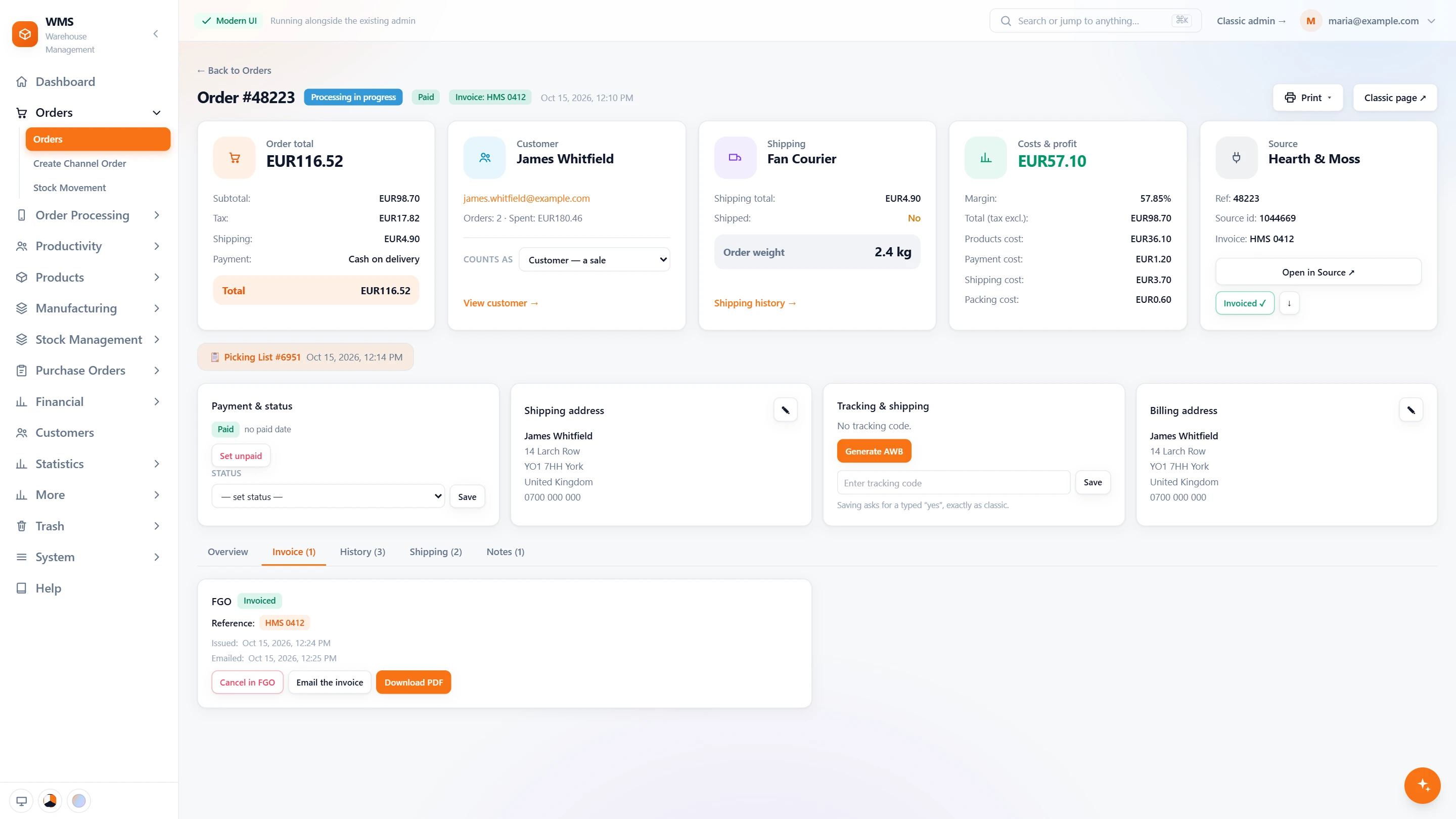
Stock that follows the order
When stock is adjusted by hand after each order, the numbers drift and items get oversold. Here the order's status moves the stock for you, and every change can be traced.
- Statuses that do the workStock moves without anyone remembering to do it. For each status you set what it means: accepted reserves the stock, shipped takes it out, returned or cancelled puts it back, paid marks the order paid.
- Product reservationsWhen stock looks lower than the shelf, see why: one view of which orders hold which stock right now.
- Every change explainedNo guessing where stock went: each stock change from an order is a stock movement that names the order.
- Separate permissionsSeeing orders, changing them and creating them are separate permissions, so each person gets the part they need and nothing is changed by accident.
What you gain
The right queue first
The warehouse works from Paid & ready to ship, so nothing unpaid gets packed by mistake and nothing paid sits waiting.
No item sold twice
Stock is reserved as soon as an order arrives and the new figure goes to every shop and marketplace, so you never sell the last item twice and have to apologise.
Any order in seconds
A customer calls and you find their order straight away: search by order reference, the shop's order number, tracking code, invoice number, or the customer's name or company.
Connected to the shops, marketplaces and couriers you already use.






Questions
Which shops and marketplaces send their orders to Pulsa?
PrestaShop, Shopify and WooCommerce shops, and the eMAG, Allegro and Trendyol marketplaces, so all their orders land in one list. Each one has its own page under Integrations.
Do we have to change our order statuses?
No, your team keeps the statuses it already knows. Pulsa can work with your shop's statuses, and each channel's statuses are mapped to what the warehouse does next. Pulsa can also use statuses of its own; we set that up with you.
Can we create an order in Pulsa?
Yes. An order taken by phone, for example, can be created in Pulsa for one of your sales channels, so it goes through the same picking, packing and stock as every other order.
How are invoices numbered?
With invoice series: a prefix and a start number for each series, used by the sales channels you choose. An order takes its number at its first invoice print and keeps it, so printing it again never gives it a second number.
What if a delivery address is wrong?
Correct it on the order before the shipping label is created, and the parcel goes to the right place. Once the courier has the parcel, the label is voided and created again.
Guides
Related features
All featuresSee it with your own orders.
In the demo we connect your channels and walk you through this part of Pulsa on the real screens.