
Everyone sees their own screens, and every change has a name.
Roles for pickers, warehouse managers and the office, permissions set page by page, two-step sign-in, and logs that say who did what and when.
One shared login, and nobody knows who changed the stock.
When everyone signs in with the same account, every screen is open to everyone, purchase prices included, and a wrong stock figure cannot be traced back to a person or a moment.
How it works in Pulsa
Roles for every job
No more setting up each person from scratch. Picker, warehouse manager, admin and the roles you need: a role carries its permissions, and extra permissions can be given to one person.
Permissions page by page
Nobody wanders into screens that are not theirs. A grid of pages against roles says which role opens which page, and menu entries a role does not need are hidden, so each screen stays simple.
Safe sign-in
A leaked password should not open the office. Office accounts get two-step sign-in with an authenticator app, and warehouse devices sign in with a QR code instead of a typed password.
Who did what
When a figure looks wrong, you can find out why. Picking, packing, intake and scanner logs, stock movements with the person behind each change, and the full status history of every order.
Nothing lost by mistake
A wrong click is not a disaster. Deleted products wait in the trash to be restored, and the deletion log says who deleted what.
Everything users and roles do, permission by permission.
Giving each person the right access usually means guesswork or one shared login. The user pages of Pulsa offer roles for every job, every permission in one grid, and exceptions for one person.
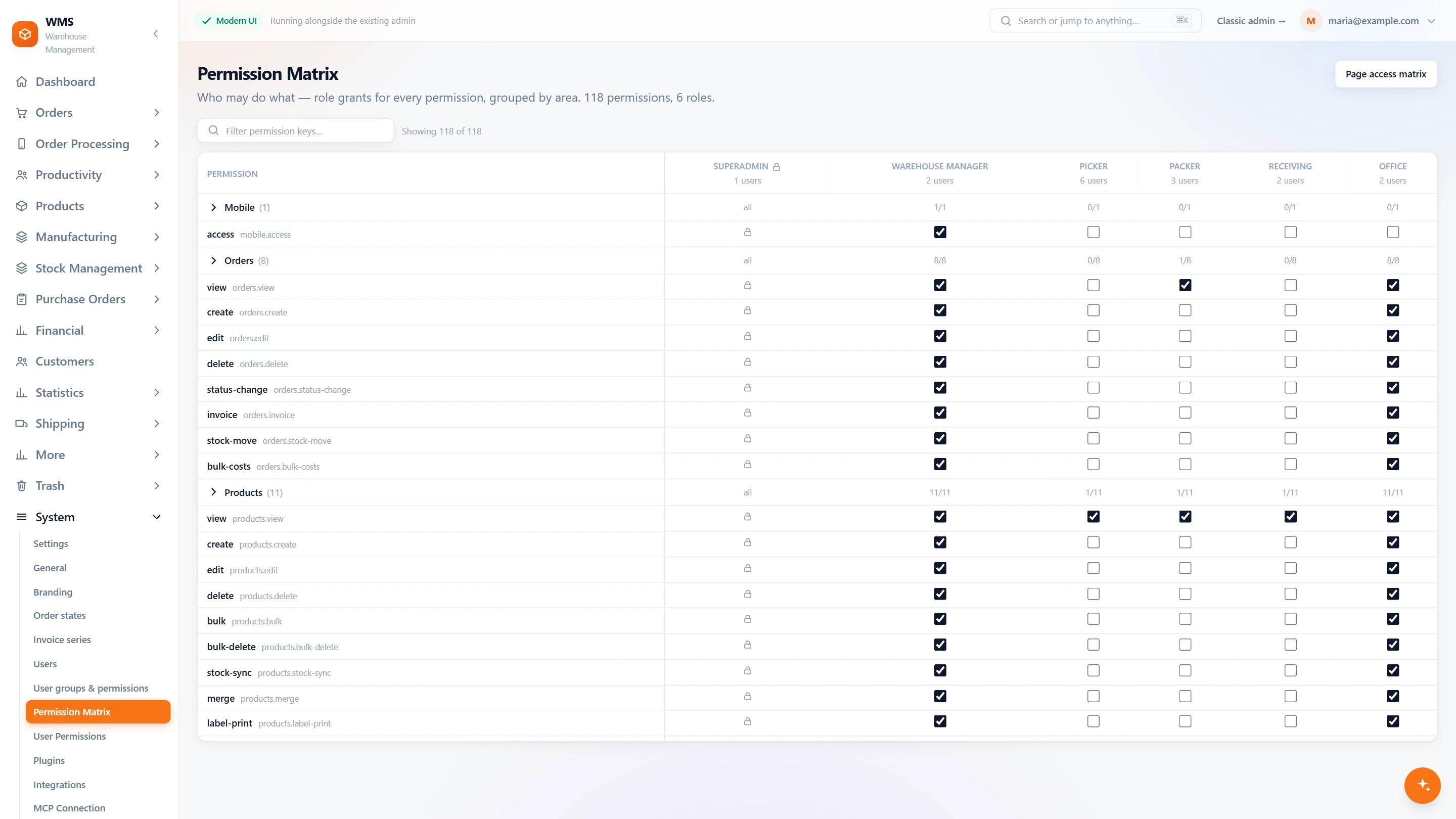
Every permission in one grid
Checking who may do what, screen by screen, takes ages. One grid shows every role against every permission, so you see and change access in one place.
- Roles against permissionsEvery permission in the rows, every role in the columns, a tick where the role is granted it: the whole picture at once.
- Grouped by areaOrders, products, picking, packing, stock, purchasing and the rest, each with how many of its permissions a role holds, so a long list stays readable.
- Find one quicklyFilter the permissions by name instead of scrolling.
- How many peopleEach role shows how many users hold it, so you know who a change will reach.
- The superadmin cannot be locked outThe superadmin role always holds everything and cannot be changed by mistake, so nobody locks the business out of its own system.
- Page by page tooA second grid says which role opens which page; menu entries a role does not need are hidden, so screens stay uncluttered.
Exceptions for one person
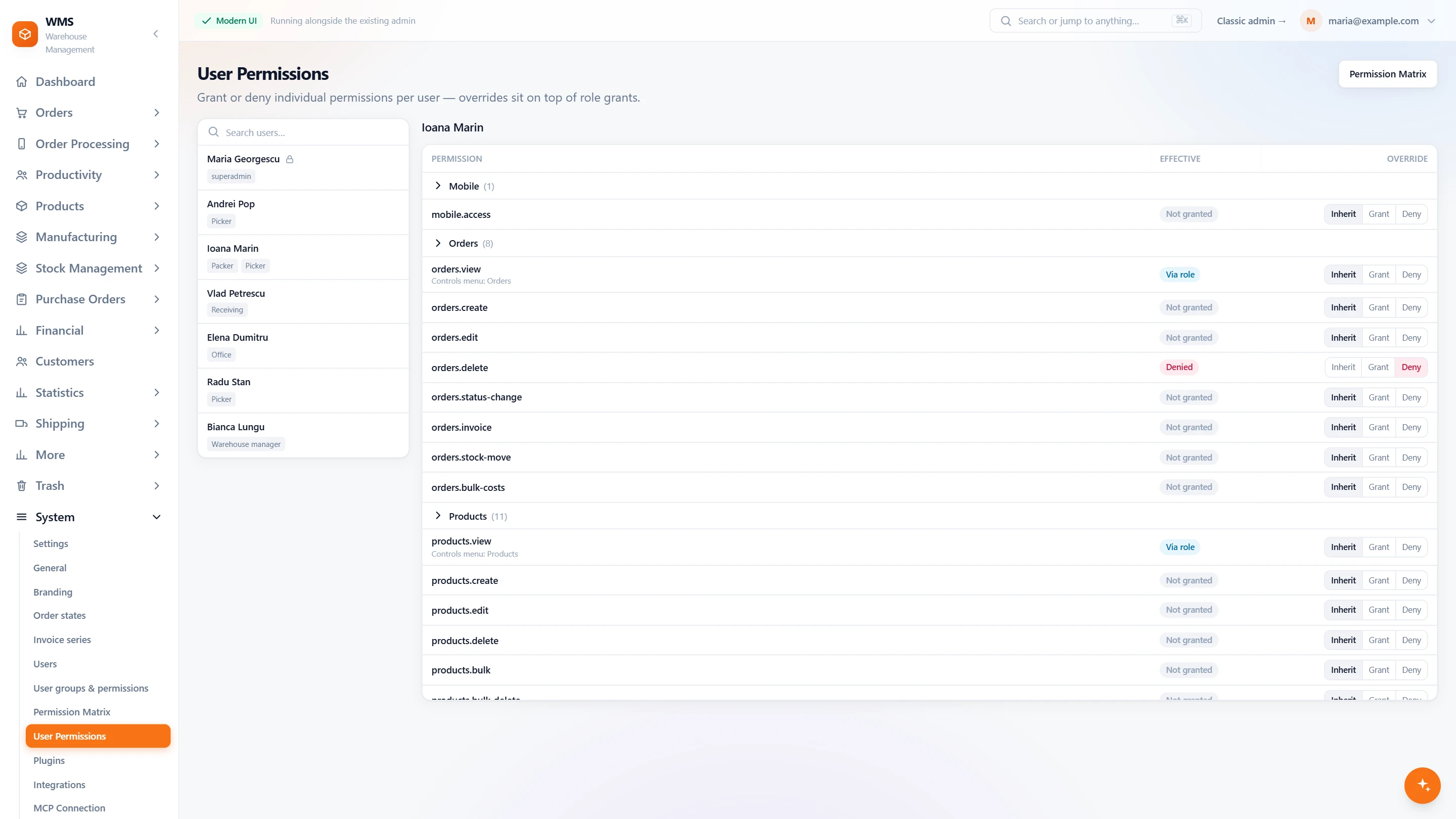
One person often needs a little more or less than their role. Grant or deny a single permission for them, and see exactly what they can do, without inventing a new role.
- Everyone and their rolesA searchable list of users, each with the roles they hold; one person can hold several, so a mixed job needs no special setup.
- What they can really doFor the person you choose, every permission is marked: granted through a role, not granted, or denied, so there is no guessing.
- Grant or deny one thingGive one person a permission their role does not have, or take one away, without making a new role.
- Which menus it controlsA permission that shows or hides a menu says which one, so you know what the person will see.
Safe and traceable
Shared passwords and untraceable changes turn every mistake into a mystery. Personal sign-in, full logs and a trash for deleted products mean you always know who did what, and can undo slips.
- Roles for every jobPicker, warehouse manager, admin and the roles you need. A role carries its permissions, so a new colleague is set up in moments.
- Safe sign-inTwo-step sign-in with an authenticator app for office accounts, and a QR code to sign in on warehouse devices, with no password to type.
- Who did whatPicking, packing, intake and scanner logs, stock movements with the person behind each change, and the full status history of every order, so questions have answers.
- Nothing lost by mistakeDeleted products wait in the trash to be restored, and the deletion log says who deleted what.
- Changes to settings recordedEvery change to a permission or a setting is kept, with who made it, so an unexpected change is easy to trace.
What you gain
The right screens for each job
Pickers see picking, the office sees the office, and nobody is lost in menus they never use.
Answers instead of blame
Every change can be traced to a person and a time, so a mistake is fixed instead of argued about.
Protected office accounts
A stolen password alone does not open an account with two-step sign-in.
Questions
How many users can we have?
As many as your team needs; each person has their own account and language, so nobody shares a login.
Can a picker see purchase prices?
Only if their role allows it. Permissions are set page by page for each role.
Is there a record of changes to Pulsa itself?
Yes. The changelog shows what was added to your Pulsa, and settings changes can be compared, so a change in behaviour is never a mystery.
Guides
Related features
All featuresSee it with your own orders.
In the demo we connect your channels and walk you through this part of Pulsa on the real screens.