


Postis labels, automatic or by hand.
Labels created automatically as orders are packed, or by hand from the orders list when a parcel needs something special: several parcels, cash on delivery, extra services. Tracking and cancelling stay in Pulsa too.
- 100%of items scanned before the label is printed
- 1screen to pack the parcel and print its label
- 13+couriers, all with the same print buttons
- 0labels retyped on the courier's own website
Your Postis shipments, handled where the parcels are packed.
If you send your parcels through Postis, the usual routine is to keep the Postis platform open beside the orders and enter each shipment there: the customer's details, the number of parcels, the cash on delivery amount and any extra service. It is slow, and a detail copied wrongly or a label stuck on the wrong box turns into a returned parcel or an unhappy customer.
With Postis connected, labels are created by Pulsa itself. For ordinary orders the label is created automatically as the order is packed, after the items have been picked and checked by scan. When a parcel needs something special, a window on the orders list lets you set the parcels, cash on delivery and extra services by hand. Each parcel gets its tracking link, and an AWB can be cancelled from the orders list.
Your Postis account and contracts stay as they are, and Pulsa keeps itself signed in to Postis, so nobody has to log in again. You start by creating a few labels by hand and checking them; automatic labels are switched on only when you are happy with the first ones. It is made for sellers in Romania who already ship through Postis.
Less typing, flexible labels, faster dispatch
Everything the Postis integration does.
What the Postis plugin of Pulsa really does, on its own settings page and in daily shipping.
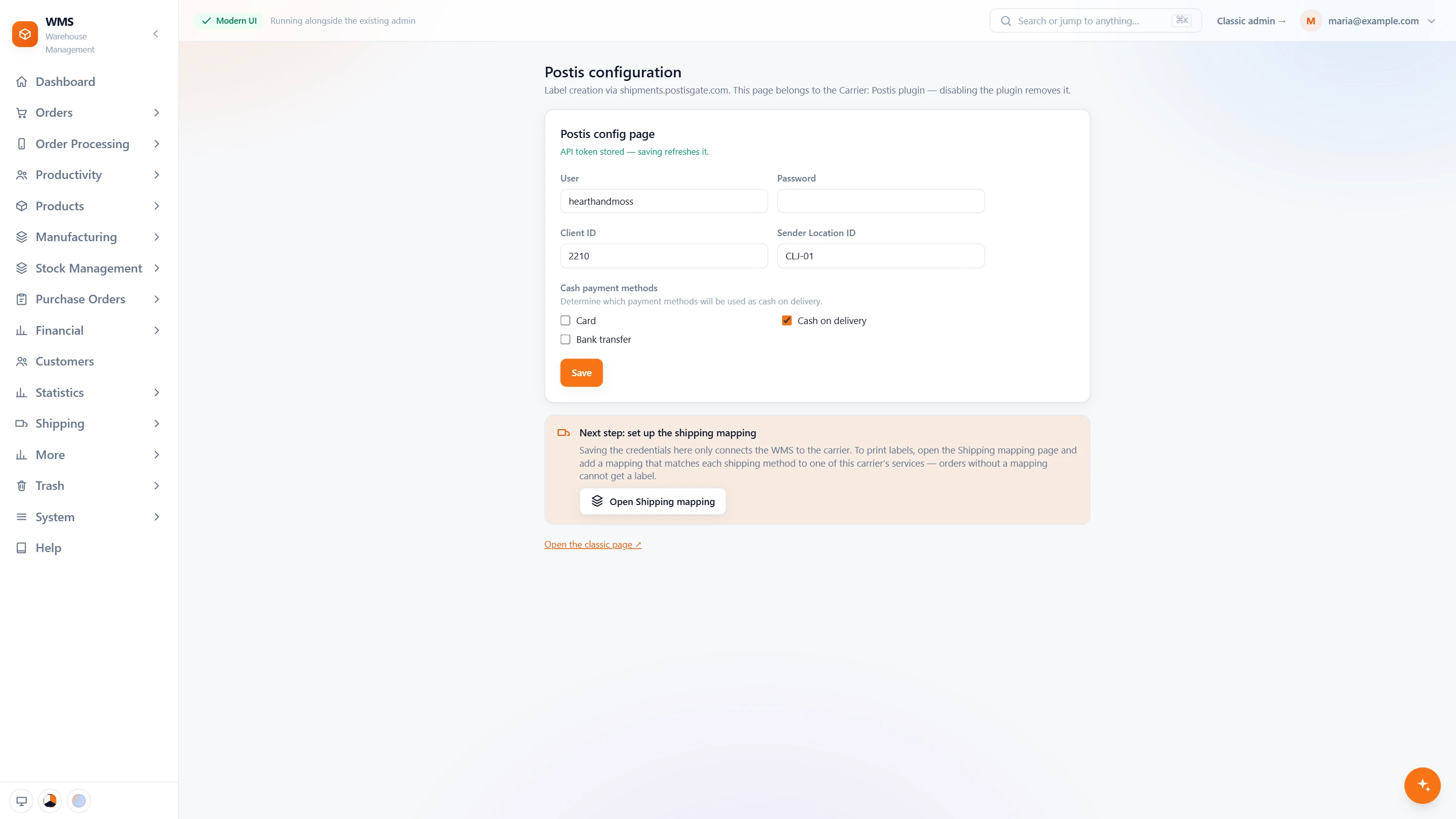
Connect your Postis account
- A shipping platformPostis creates the labels through its own platform, shipments.postisgate.com.
- Your own accountYour Postis user, password and client ID.
- Signed in by itselfThe access token is stored, and saving the page refreshes it, so nobody has to log in again.
- Where parcels leave fromThe sender location ID tells Postis which of your addresses ships the parcel.
- Cash on delivery, tickedTick the payment methods that mean cash on delivery.
- Then the shipping mappingThe page reminds you of the last step: link each shipping method of your shop to a Postis service.
In daily shipping
- Two ways to a labelPrint from the orders list or the picking list, or let it be made when packing finishes.
- By hand when neededA window on the orders list sets the parcels, cash on delivery and extra services for an unusual order.
- Cancel and trackCancel an AWB from the orders list, and keep the tracking link on the order.
- First labels checkedCreate a few labels by hand and check them before the team relies on them.
From a new order to a parcel through Postis
- 01The order arrivesFrom your shop or marketplace, with the delivery option the customer chose.
- 02Picked by scanA picking list sorted by rack and bin leads your team through the warehouse, and every item is scanned.
- 03Packed and checkedEach item is scanned again at the packing table, so the box holds exactly what was ordered.
- 04Label createdPulsa creates the Postis label automatically, or you open the AWB window to set parcels, cash on delivery and extra services.
- 05On its wayThe parcel waits for the courier, and its tracking link stays on the order in Pulsa.
What moves between Postis and your warehouse
Setting up Postis with Pulsa
- 01Your Postis account
Add your Postis credentials; Pulsa keeps itself signed in.
- 02Delivery options mapped
Each delivery option in your shops goes to the right Postis service.
- 03First labels checked
Create a few labels by hand and check them.
- 04Switched on
Automatic labels start once you are happy with the first ones.
- A Postis account with API access
- A printer for the labels
We set it up with you during onboarding, and every connection starts switched off until it has been tested.





Questions about Postis
What does the Postis integration do?
It creates Postis labels from your orders in Pulsa, automatically as orders are packed or by hand with parcels, cash on delivery and extra services. It also keeps each parcel's tracking link and lets you cancel an AWB from the orders list.
Can I create an AWB by hand?
Yes. A window on the orders list lets you set the parcels, cash on delivery and extra services.
Can I collect cash on delivery?
Yes. Set the amount when you create the AWB.
Can I cancel an AWB?
Yes, from the orders list in Pulsa.
Do I need a developer to set it up?
No. You add your Postis credentials and choose the Postis service for each delivery option. Pulsa keeps itself signed in after that.
How do I make sure the labels are right before going automatic?
Create a few labels by hand first and check them. Automatic labels are switched on only when you are happy with them.